My Computer just Failed the Win 11 upgrade checker. What now?
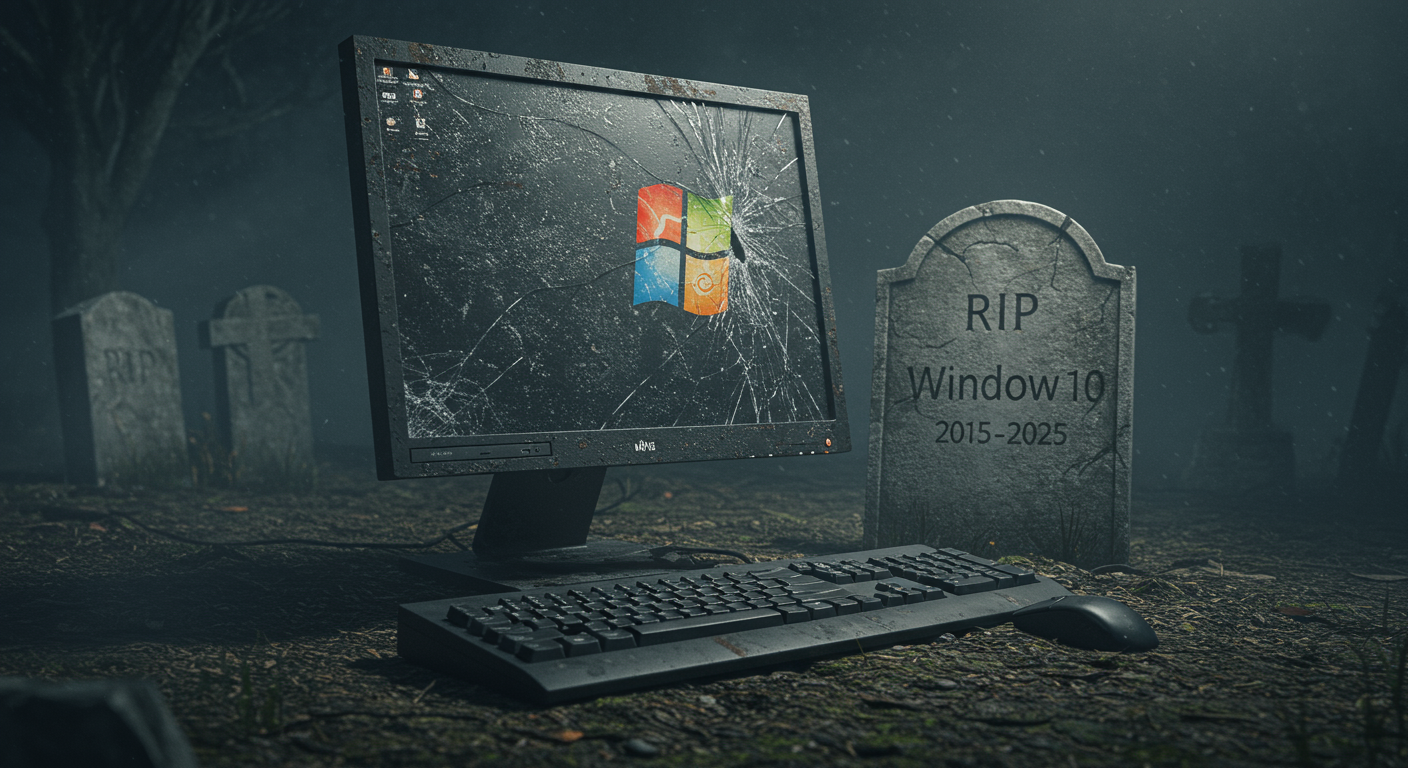
Thanks Microsoft. In the middle of one of the biggest periods of global financial uncertainty the big daddy of the desktop OS world has decided it’s time to send Windows 10 to its retirement home (End of Life Date has been set for October 14th 2025). This is all well and good. All things must come to an end and we have to move on (at least that’s what my psychiatrist told me back in 2014 when my beloved Windows XP went EOL). The problem this time around is that the hardware requirements to “fix” your old Windows 10 by upgrading it to 11 are so stringent that an estimated 500 million machines will not meet the standard. Not only does this generate very unwelcome replacement bills for those half a billion computer owners but from an environmental point of view, sending so many perfectly serviceable machines to landfill is hard to take. Microsoft is essentially forcing hundreds millions of users into a corner with their high upgrade hardware requirements, but there are a couple of ways around this that most people don’t know about. Some are free, some cost, and 1 involves turning your back on Windows entirely.
The Serious Risks of Staying on Windows 10
You might think that staying on Windows 10 isn’t such a big deal. If your computer is working fine now, it will hardly explode on October 14th, will it? I’ve been hearing this kind of thinking a lot recently and I understand why it makes sense on the surface. Files will still open, your programs will run (for a while anyway), and everything will look and feel normal on October 14th. But what actually happens on October 14, 2025, is that Microsoft pulls the plug on Windows 10 support entirely. Security updates will stop coming. It’s the digital equivalent of a large department store announcing in advance that from a certain date, it will be retiring its security guards and deactivating the alarms. As you would expect, the thieves would be rubbing their hands waiting for the date to arrive!
In the world of Windows, it will be the hackers who will be rubbing their hands in the run up to this year’s EOL deadline. They will inevitably find new security vulnerabilities, which without patches, leaves your system like a sitting duck. The most serious kind of threat these days is that of ransomware attacks that can encrypt all your files. A ransomware attack can wipe out years of valuable and irreplaceable data (photos, documents, client files) because the security holes in the outdated operating system made it an easy target. There are documented cases of businesses without a working backup who have had to literally cease trading after a ransomware attack. Recovery efforts in the absence of a backup are usually fruitless. It’s a devastating case of total loss.
Aside from this serious security element to EOL, 3rd party software developers will essentially abandon Windows 10. They will stop updating their programs for Windows 10 (why would they continue), meaning that your favorite programs might stop working or become incompatible as the months pass. Your antivirus program will be among the first to go as with previous EOLs most AV companies stopped supporting old operating systems within 6 months approximately. Web browsers like Chrome and Firefox will follow, leaving you with outdated versions that can’t handle modern websites properly. Sites will eventually not load at all or load partially. Videos or other media on sites might not play.
For businesses, there are a whole set of compliance type issues to consider with an EOL. Many sectors like legal, financial services and healthcare require an up-to-date software environment to meet their regulatory standards. If you’re running a business on Windows 10 after support ends, you could face audit failures and hefty fines. In the event of something going wrong like a data loss event, regulators will be all too quick to point to your use of an EOL workstation as the cause. I’ve worked with small businesses that learned this lesson the hard way during previous Windows transitions.
The basic reality of it is that the longer you wait past October 2025, the more vulnerable your system becomes, & the harder it gets to recover if something goes wrong. New malware specifically targets unsupported systems because they know the security holes won’t be patched. It’s an easy win for the malware authors. What starts as a smallish risk in October compounds over time into a big serious threat to your data and privacy. If you’re a business particularly (or a home user with no or inadequate backups), this is unacceptable.
The bottom line is that staying on Windows 10 after support ends puts your data & privacy, and at genuine risk. And that not saying anything about your productivity levels now that all the 3rd party devs have left the party! It’s not just about missing new features or having an older interface; it’s about core security and compatibility problems that only get worse as time progresses. Now that you understand what you’re up against, let’s look at your actual options for dealing with this situation. (And sorry to be the bearer of all this bad news!)
Upgrade and Workaround Options?
Before you dust down the debit card and start shopping for a new computer, there are actually a couple of ways to keep using your current machine, though each comes with negatives. Some work better than others, but they all have limitations you should understand before committing to any particular approach. Basically, don’t get your hopes up too high!
If your computer has failed Microsoft’s PC Health Check tool (their compatibility tester), you can try bypassing the requirements using registry edits or tools like Rufus, but there’s a catch people need to know about. The process involves making mods to Windows 10 registry entries essentially to trick the Windows 11 installer into thinking your non-compliant hardware is compliant! You navigate to a specific registry location and create what’s called a ‘DWORD’ value that essentially tells Windows to ignore the hardware checks. This can work initially for a while, but there could be a bigger problem lurking.
The latest Windows 11 version, 24H2, requires something called the ‘PopCnt’ instruction, which older CPUs simply don’t have. No bypass will fix that because it’s a fundamental processor capability that the operating system needs to function properly. So, if you bluff the windows 11 installer with the registry edit, you haven’t changed reality, you’ve just bluffed! I’ve tested this on several older machines, including a 2016 desktop that seemed perfectly capable otherwise, and while you might get Windows 11 installed using these workarounds, you’ll likely hit a wall when trying to update to newer versions. The system will refuse the update or crash during installation. It’s a lot of effort to gain just a little bit of extra time with Windows 10 in my opinion.
Your 2nd option is Microsoft’s ‘Extended Security Update program’, which costs $30 per year for consumers and gives you security patches for up to 3 years. For many, paying extra to keep their current computer secure for 3 more years makes more sense than buying new hardware immediately, especially if their workflow depends on specific Windows 10 software configurations that work well on their current setup. The Microsoft ESU program won’t give you new features or fix compatibility issues with newer software, it just fixes those security concerns we talked about earlier. You’ll get the critical patches that protect against malware and ransomware, which is really the most important thing for most home & business users.
These workarounds can buy you time, but ultimately, they’re temporary solutions rather than permanent fixes. The registry bypasses become less reliable with each Windows update, and the ESU program has an end date, and the money spent on it could have paid off a chunk of your new hardware bill! But if neither of these options work for your situation, it’s time to consider more dramatic changes to your computing world!
New Computer or Alternative Operating Systems
As a matter of fact, you don’t necessarily need to stick with Windows at all, & some alternatives might actually work better on your current hardware saving you the price of the upgrade. As you may know, I’ve spent considerable time testing different operating systems on older machines, and the results have been interesting. If you do decide to buy a new computer, look for one with at least 16GB of RAM, an SSD, and a processor from the last few years to ensure Windows 11 compatibility. I have always loved Intel’s i5 processor line as a great all round business machine. But before you spend that money, let me walk you through some options that could save you hundreds.
Look up Linux Mint, which I’ve installed on dozens of older computers with great results. The interface is not unlike Windows, which makes the transition much smoother than most people expect. I recently set up Linux Mint on a 7-year-old laptop that was struggling with Windows 10, and the owner was amazed at how much faster it ran. Boot times dropped from 2 minutes to about thirty seconds, and programs opened instantly instead of taking ages to load. Linux Mint runs really well on older hardware, potentially extending the lifespan of computers that might struggle with Windows 11’s demands. Linux based operating systems just don’t have the big hardware requirement of Windows.
Another option worth looking at is ChromeOS Flex, which turns basically your computer into a Chromebook! This works particularly well if you mainly use web-based applications like Gmail, Google Docs, or online banking. I tested ChromeOS Flex on an 8 year old desktop, and it transformed this sluggish machine into something that felt brand new. The streamlined nature ChromeOS breathes new life into aging hardware, though you’ll need to verify that your specific model is on Google’s certified compatibility list.
What suits your workflow matters more than following what everyone else is doing. If you’re mainly browsing the web, checking email, and working with documents, either Linux Mint or ChromeOS Flex could give your current machine several more years of useful life without the security risks of staying on unsupported Windows 10. I’ve always said that matching technology to your actual needs often produces better results than assuming you need the latest and most expensive option.
However, one cold hard truth is that Windows is dominant. Around 7 out of every 10 computers in the world will be using Windows so that’s where all the support and software action is. If you move away to Linux for example, you will be embarking on a whole new world of learning to do things differently and using different programs to do things. A lot of learning! A lot of difference!
The bottom line is that Microsoft’s Windows 11 requirements have created a sort of ‘artificial deadline’ that doesn’t have to control your computing future if you have some flexibility about learning and moving to a new software environment. Whether you choose to pay for extended support, try a bypass, switch to Linux, or buy new hardware, the important thing is making an informed sensible decision before October 2025. Don’t get caught in the rush in the middle of October! Take some time out now to consider what might work for you.